GUIDES / Airtable
Additional record tabs in Airtable
 Russell Bishop
Last updated 4th June 2026
Playground

- Open demo base
- Duplicate to your workspace
- Explore the interfaces
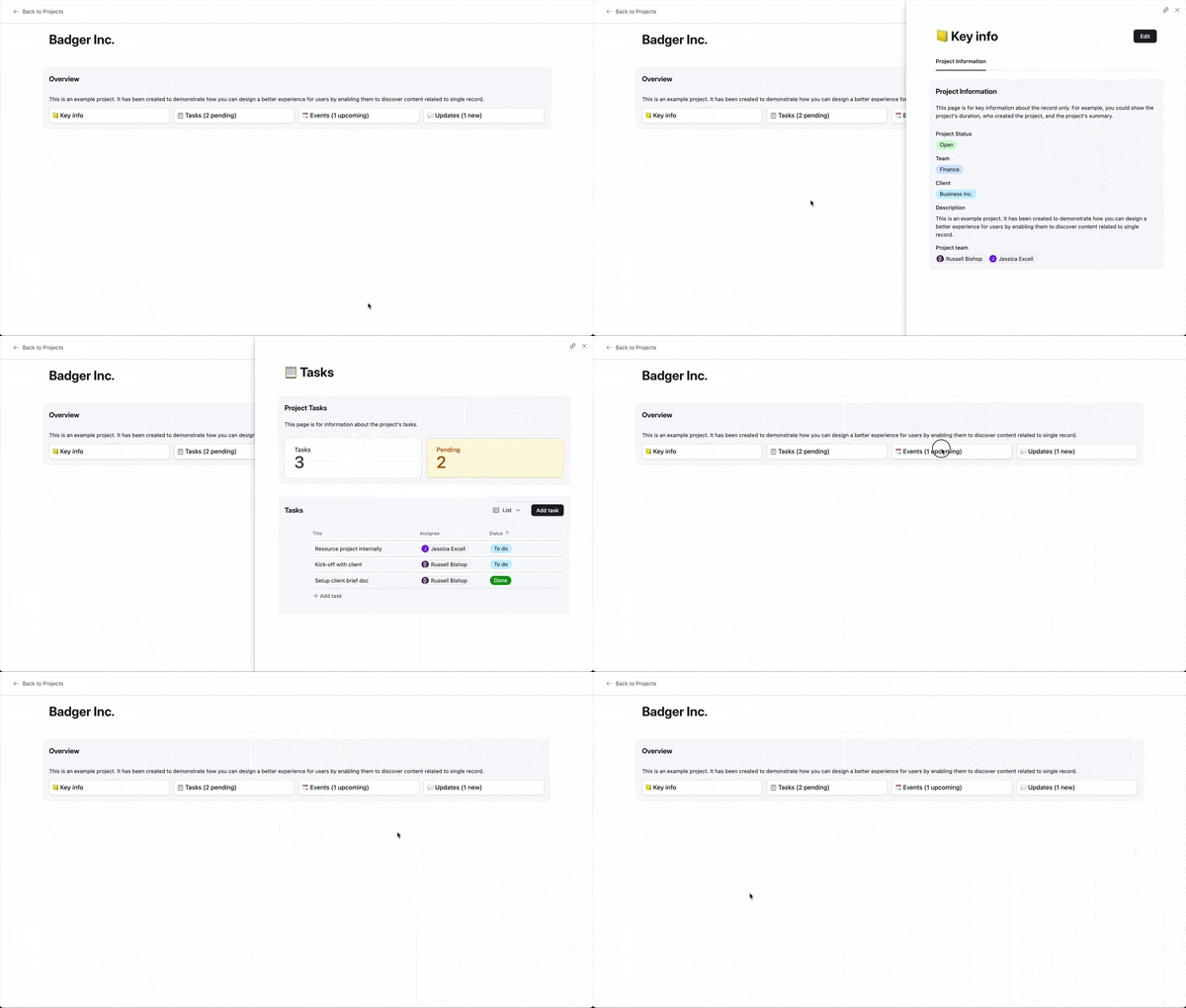
Video demonstration of a single Airtable record (a project) with additional record tabs showing dynamic information. Each of the additional tabs opens a separate record details with a customisable view of the current record.
Better content discovery
Additional record tabs let you organise data related to a record across multiple tabs.
Each record detail can expose a different section of content with it's own views, buttons and revision history.
You can even reveal dynamic data (5 new updates) on the tab itself.
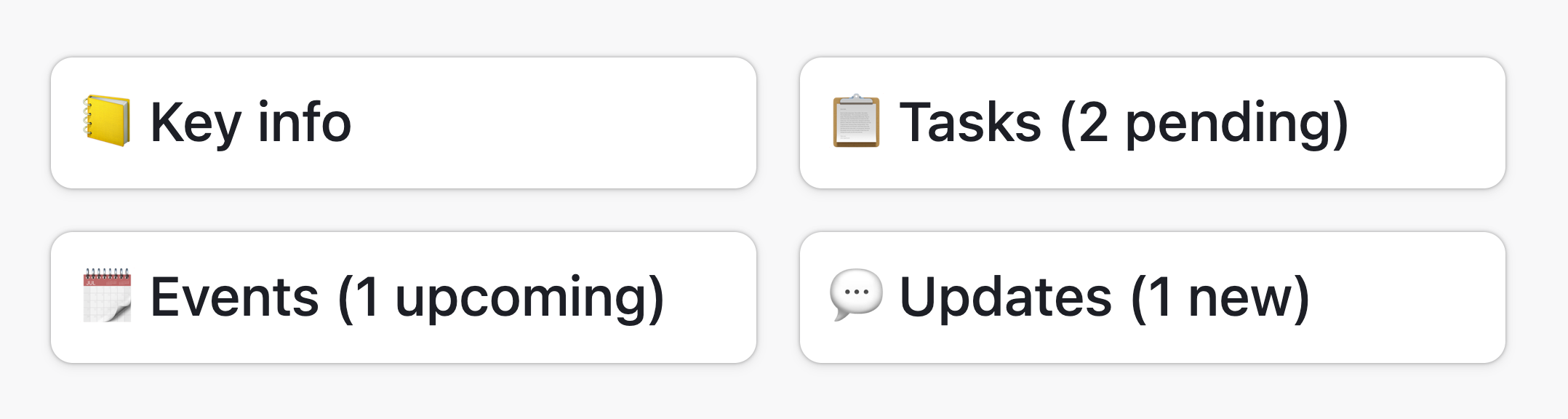
Configuration
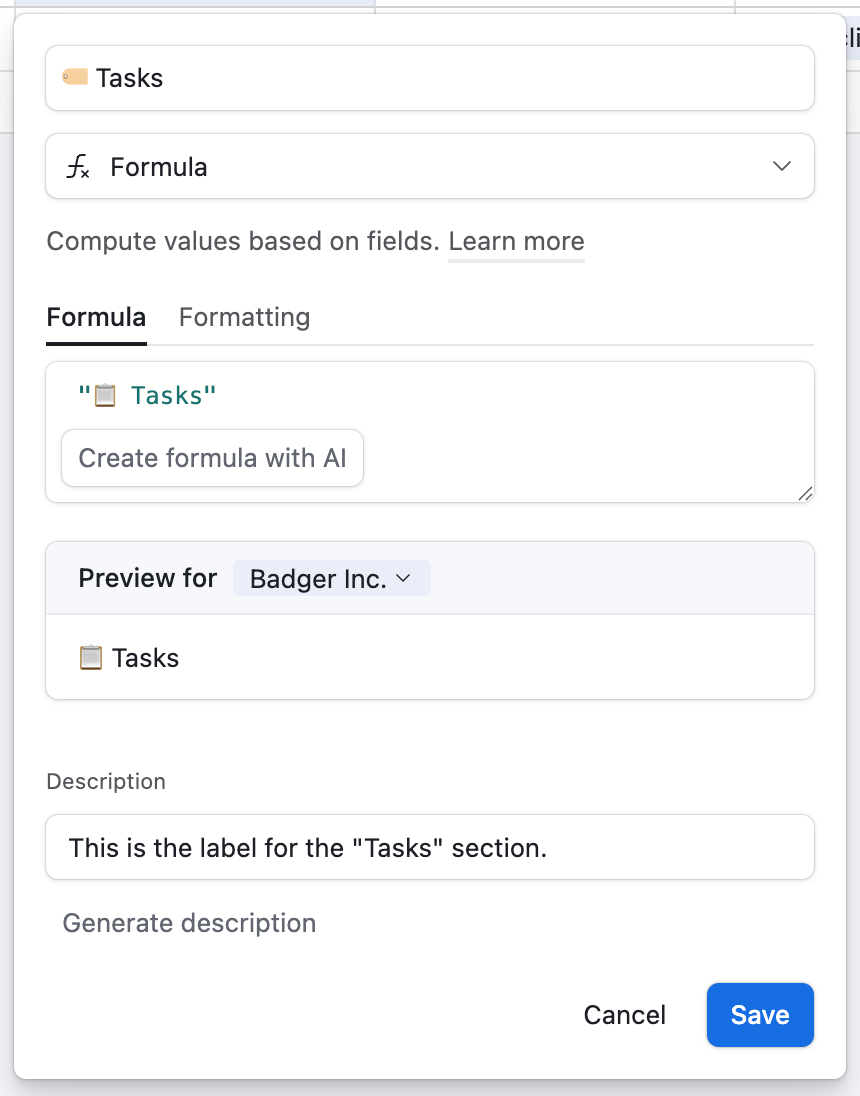
Create tab labels in new fields
In your table, add a new formula field for each Additional record tab you'd like.
The formula should output a string, e.g. 👥 Team members or📅 Meetings.
You can add additional dynamic data into this formula later.
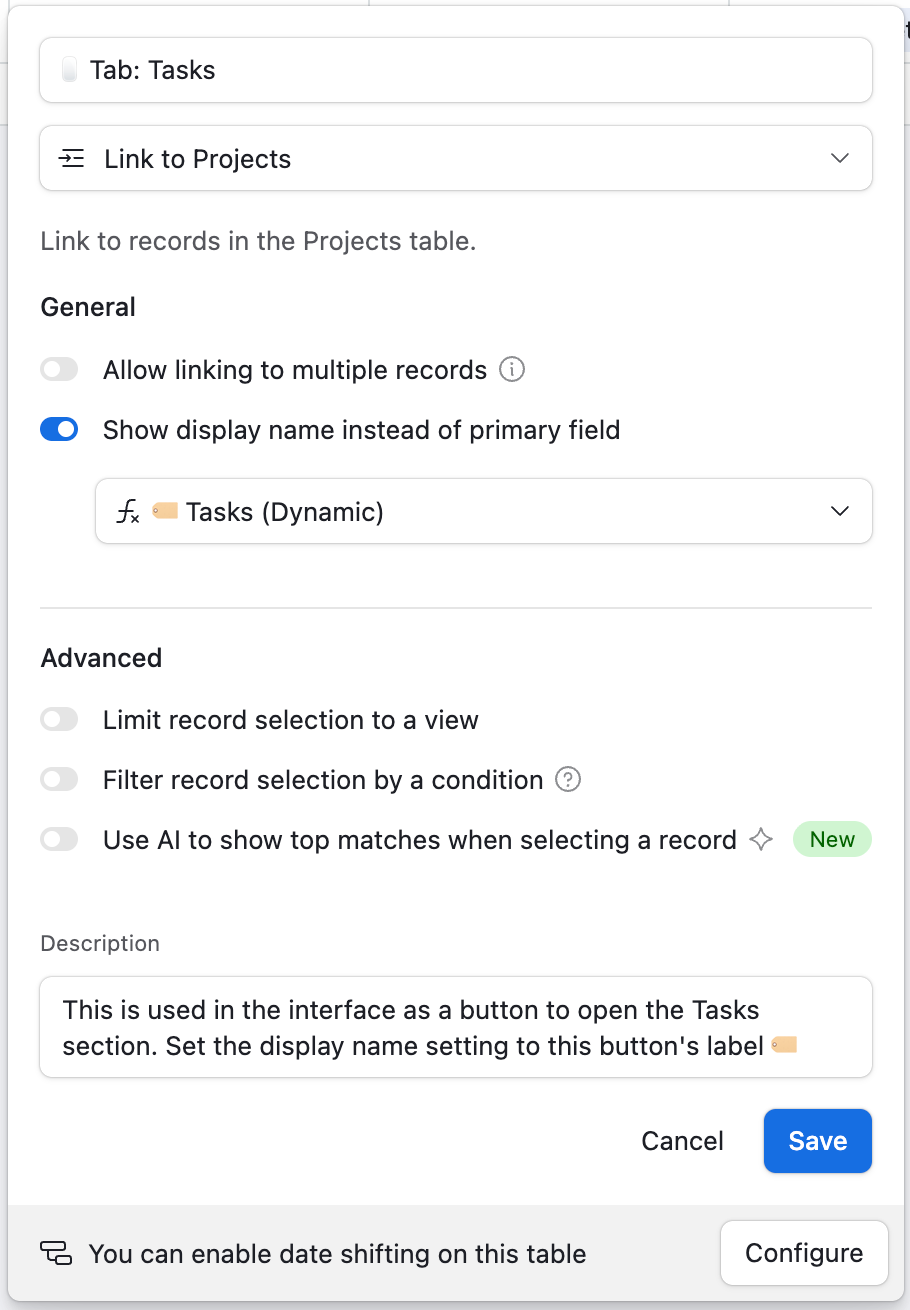
Create same-table linked record fields for each additional tab
Add a new linked record field where the table is the current table (self-linking).
Tick the Show display name instead of primary field checkbox and select one of your tab detail labels from the previous step.
Fill in existing records, then Add an Automation
In your current table, fill in the existing records with a link back to themselves. The most reliable way to do this is to create a formula field called "Record ID" that exposes the records RECORD_ID(), then copy and paste that record ID into each of the new same-table linked record fields.
Automation for new records
Create a new automation that triggers when a record has one or more of the self-linking fields empty.
Set the only action in this automation to set the value of all self-linking fields to the record ID of the triggering record.
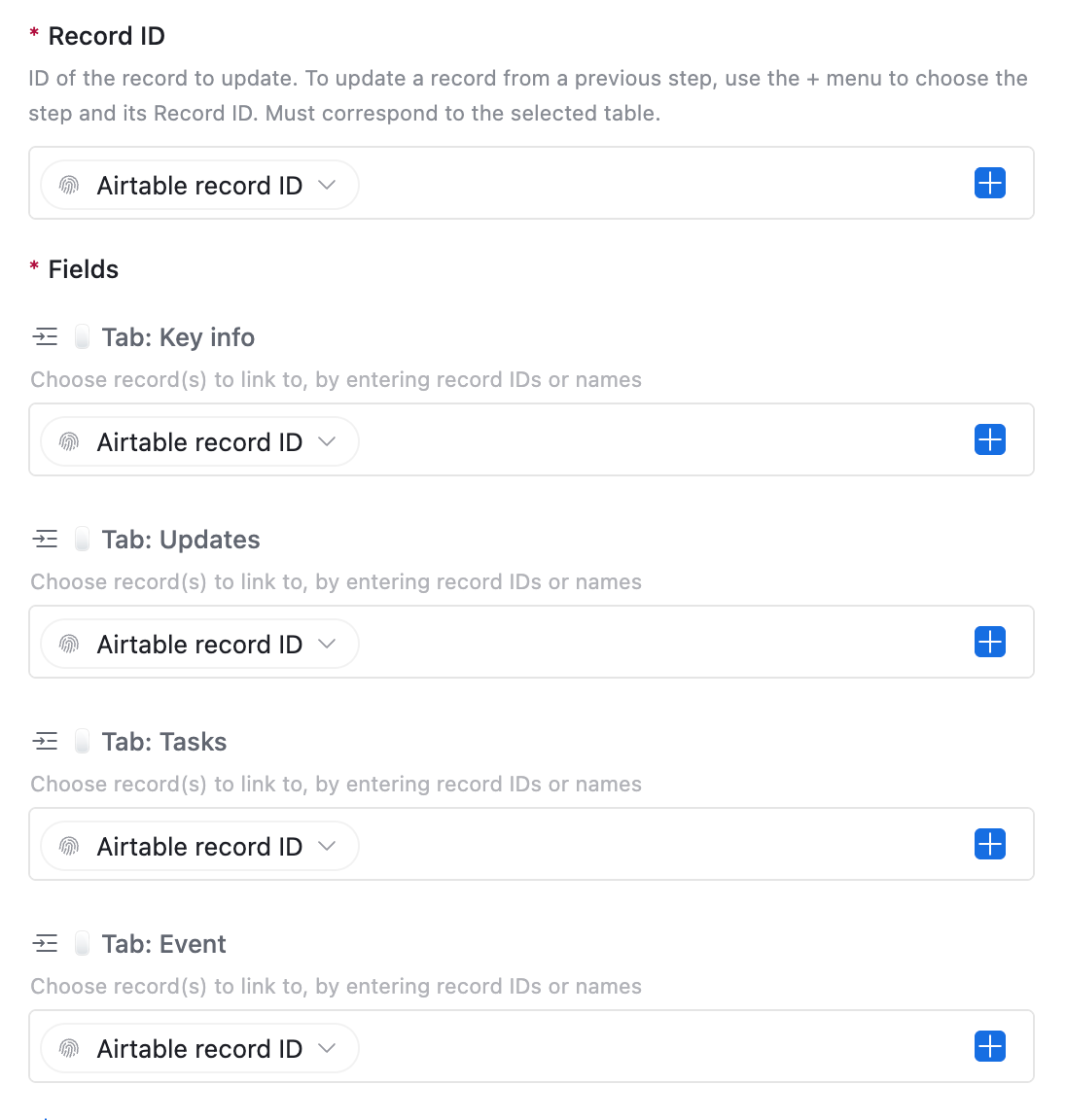
Add your new record tabs into a record detail
Add in each linked record field to a record detail interface, just like a normal field. Unless you're getting even more creative, we suggest setting "fields" to 0 visible fields to maintain the illusion that these are buttons.
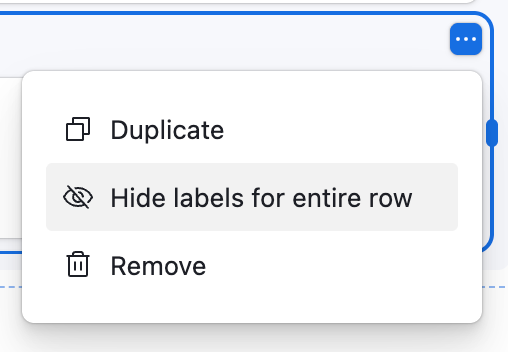
Once each of your tabs are added in a row, you can select one of them and use the blue drop-down menu to Hide labels for entire row.
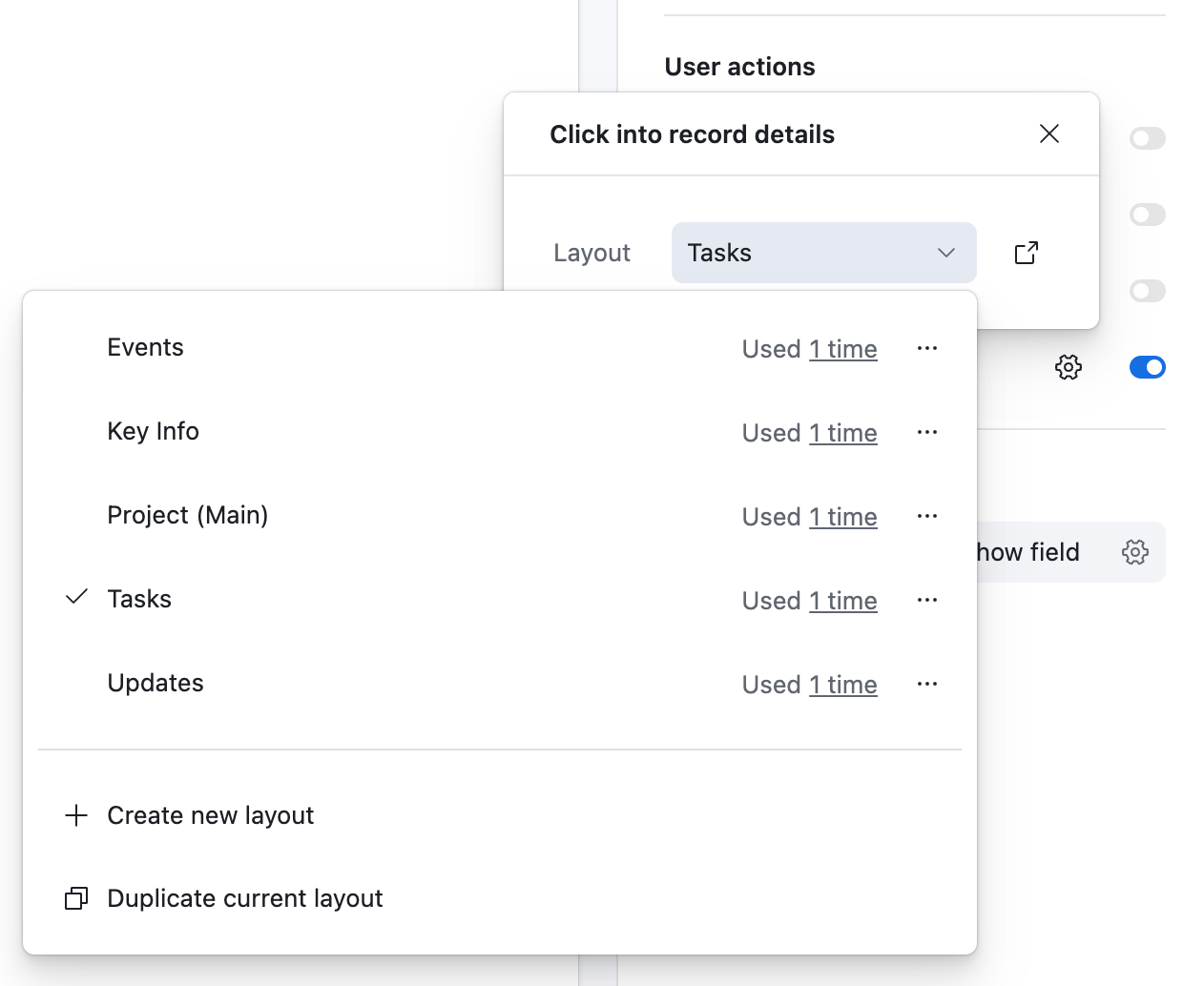
Configure your record detail layouts
Set each record tab to open a unique record detail layout. We recommend setting the title to the relevant tab detail label from the previous step.
Tips and Notes
Comments are still global
You may at some point fool yourself into believe these record details are totally separate entities, but they are still one underlying record.
That means that comments left in any of these record details are left across all of them.
Self-linking record fields are created in pairs
Every same-table linked record field creates a second same-table linked record field to mirror the first. You can configure the mirror field for your next Additional record tab.